EMPLOYEE RECORDS GUIDE
How to Organize Employee Files: Categories, Access and a Checklist
Turn scattered employee documents into a system your team can maintain: an inventory, clear categories, accountable owners, and a reliable way to find the approved record.
Important: This guide provides general operational information, not legal advice. Employment requirements vary by location, industry, workforce, and situation. Confirm current requirements with qualified HR or legal professionals.
START HERE
How do you organize employee files?
Inventory the records you already hold, choose categories that reflect how your team works, decide who may access each category, and make one approved record easy to find. Then turn missing or uncertain items into assigned cleanup tasks.
Download the employee-file organization checklist (Excel). Use it as an inventory and action log, not as a repository for confidential documents.
Start with a manageable group, such as one location or five fictional test records. List document types, storage systems, owners, and outstanding questions before moving real records. A migration that preserves unclear ownership will produce a tidier version of the same problem.
The FTC’s data-protection guide recommends knowing what personal information you hold, where it flows, and who can access it. Use that inventory to decide what belongs in each system.
STEP 01
Build a category map with a purpose for each record
The following is an illustrative operational map, not a universal legal filing structure. Your HR, payroll, benefits, IT, and legal owners should confirm the storage and access rules for their records before you use it.
| Category | Examples | Owner’s review question |
|---|---|---|
| Role and employment history | Accepted offer, role description, approved role/location changes | Can we identify the current arrangement and dated changes? |
| Onboarding and policies | Assigned checklist, relevant policy acknowledgments, completion records | Can we tell which version was assigned and completed? |
| Learning and credentials | Role-training records, approved credential evidence, follow-up dates | Who decides whether the evidence is sufficient and current? |
| Performance and development | Reviews, factual feedback, development goals, dated follow-up | Are notes accessible only to authorized reviewers? |
| Payroll and benefits | Records held in approved payroll or benefits systems | Can we reference the responsible system without creating unnecessary copies? |
| Restricted records | Medical or accommodation information, sensitive investigations, other specially controlled records | Have qualified owners set the correct separation and access rules? |
| Separation and archive | Approved offboarding record, equipment return, retention review | What remains open, and which retention rules or holds apply? |
Some documents belong in a different system or a separately controlled record. Do not create a broad “miscellaneous” folder that managers can browse. In particular, EEOC guidance treats employee medical information as confidential, with disclosure limited to specified circumstances. Ask your qualified HR owner to define its handling separately from routine manager records.
STEP 02
Use names and dates that answer practical questions
A good filename helps someone identify the document without opening five attachments. Use a stable employee identifier, a document category, a meaningful date, and a version when relevant. Do not put identity numbers, bank details, diagnoses, or other sensitive information in a filename.
“Alex document FINAL new 2.pdf”
“EMP-1042_Role-Description_2026-09-01_v2.pdf”
EMP-1042 is a fictional internal identifier. Choose a convention your team can apply consistently; the exact punctuation matters less than the shared meaning. Explain whether the date means effective date, completion date, or review date.
- Separate templates from completed records. A blank policy form is not evidence of an employee acknowledgment.
- Identify the current version. Preserve prior records as required instead of overwriting history during a refresh.
- Keep a document index. Record type, owner, date, status, and the approved location can be enough for a working inventory.
- Agree on correction handling. Record who made a correction and when; do not silently change a completed historical record.
New records are easier to organize when the process begins upstream. Use the new-hire paperwork checklist to decide the filing destination before asking an employee to submit a document.
STEP 03
Check who can actually open each category
A folder name such as “HR only” is not an access control. Ask the system owner to test the permissions using approved test accounts or fictional records. Check individual sharing links and inherited group access as well as the main folder settings.
- 01
Define the work need. State what HR, the manager, payroll, and the employee each need to do.
- 02
List the actual access. Include viewing, uploading, editing, downloading, sharing, and administrative access.
- 03
Test the boundaries. Confirm authorized roles can complete their task and unauthorized roles cannot open restricted material.
- 04
Assign the review owner. Recheck access when someone changes roles, leaves the organization, or a system’s configuration changes.
Record the test result and the person who approved it. The goal is a verified working arrangement, not an assumption that a shared drive or HR application enforces the policy automatically.
FICTIONAL CLEANUP EXAMPLE
Turn missing items into work someone can finish
For fictional employee Alex Chen, the inventory finds a current role description, two differently named policy files, and an incomplete training entry. The cleanup owner does not delete the apparent duplicate or assume training never happened.
| Finding | Next action | Owner | Evidence to close |
|---|---|---|---|
| Two policy files with unclear versions | Compare the source records and confirm each document’s purpose | HR | Assigned version and completed acknowledgment identified |
| Training entry has no completion date | Ask the trainer to verify the source record | Training owner | Verified date or a newly assigned training task |
| Role changed last month | Check current manager access and the approved change record | HR + system owner | Updated record and documented access check |
Use statuses such as “needs review,” “requested,” “verified,” and “not applicable.” Explain why an item is not applicable and who confirmed it. A blank cell should not have to mean both “we have not checked” and “we do not need this.”
Assign a due date to each unresolved item. Review those items as a queue, so a file cleanup becomes a controlled set of actions instead of an open-ended project.
KEEP IT USABLE
Maintain the system when work changes
Connect record updates to real events: a hire, a role change, a policy assignment, a completed review, or a departure. Decide which event creates a task, who verifies completion, and where the final record belongs.
Set retention and disposal rules with qualified owners by record type and applicable requirements. The EEOC’s recordkeeping guidance describes different obligations and preservation requirements when a charge is filed. A general cleanup checklist should not be used as permission to delete records.
At departure, use the offboarding checklist to review access, open items, and retention ownership. For active employees, use the performance documentation guide to keep factual notes and follow-up organized.
When evaluating software, use the employee document management tools comparison to turn your category map and access needs into questions for each provider. Compare the same workflow and evidence before choosing a system.
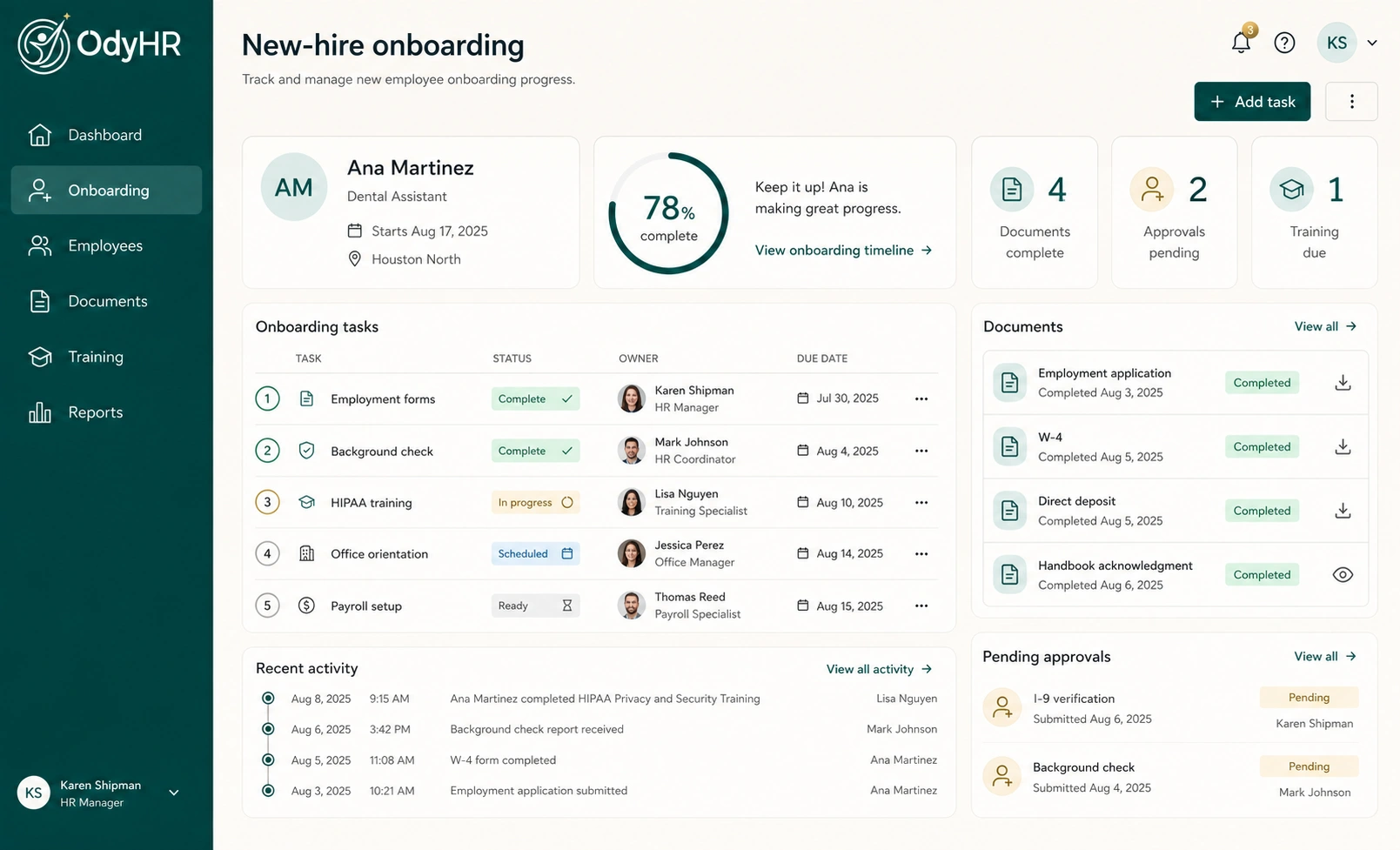
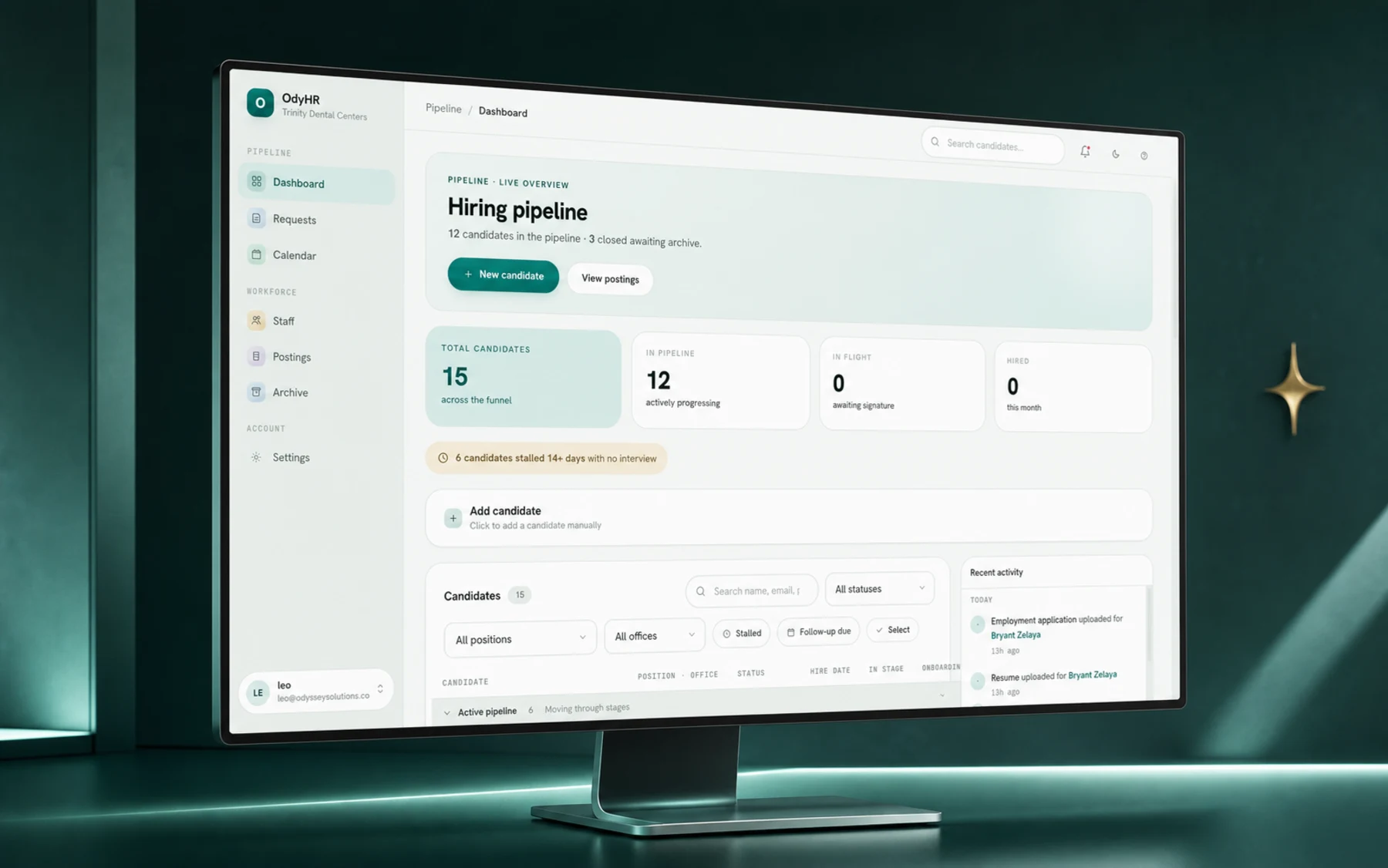
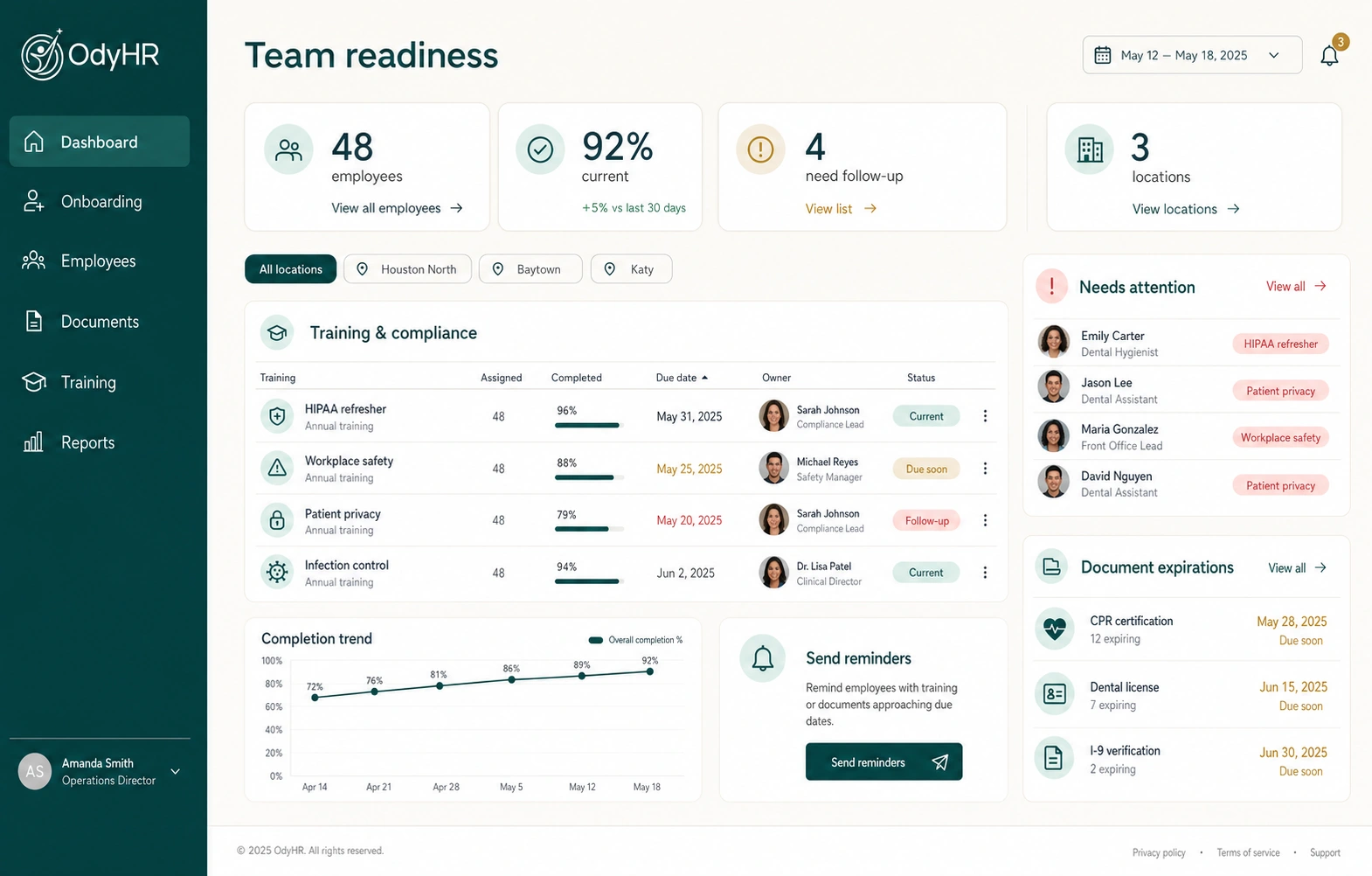
See how OdyHR connects documents to employee records. When evaluating a system, bring your category map and access needs to the conversation so the team can confirm the workflow you actually need.
AUTHORITATIVE REFERENCES